
Customer Saved Products
Customers often configure a product to preview the final result and price before they are ready to buy. Saving the full product configuration allows customers to reopen it later from their account and makes it possible to send reminders that bring them back to complete the purchase.
This guide explains how to set up a saved product and reminder workflow designed to convert more visitors into paying customers.

How it works
When a customer saves a product or cart for later, the app stores the full product configuration, including selected options, entered values, and uploaded files.
Uploaded files that are not part of an order are normally deleted after 30 days. When a product is saved, the lifetime of its attached files is automatically extended to 90 days.
Saved products can be reopened from the customer account while logged in or through a link in a reminder email, as described later in this guide.
A saved product can be opened or removed, but not updated directly. If a reopened configuration is changed and saved again, a new saved product entry is created.
Saved products that are not purchased within 90 days are automatically removed.
Customer accounts and saving
A saved product configuration must be associated with a customer account. If a customer is not logged in when saving a product, a pop-up directs them to the account login page. The current product options are temporarily stored in the browser, so when the customer returns to the product page after signing in, the configuration is restored and saved automatically.

With Shopify’s new customer accounts, the signup process does not require prior registration: customers enter their email address and receive a one-time login code.
For a more streamlined experience, see the Customer Email section below. The app can capture the customer’s email and create a customer in the background, this allows products to be saved without requiring a separate login step.
Placements
The saving of a product can be done from the product page or the cart page.
Product page
On the product options config, add a new option of type "Save for later":

This will add a button that allows the customer to save the product for later. If you want to add such a button to all products configured with the app, you can set up a new product options configuration, move it to the end of the list, and assign it to all products: How can I add multiple options configs on a single product?
Note: only valid products can be saved, before saving, the app will run the validation first and show an error if the product configuration is not complete.
Cart page
The app also allows saving a full cart for later. All the items in the cart are saved, including ones that do not have a custom options configuration, this ensures that the saved cart can be reopened later and purchased.
App block
Adding the app block is the easiest way to add the save button to the cart:

- In the theme editor, open the Cart template.
- Add the Save cart for later app block to a section.
- Configure the block settings (on the right side) like Label, Button text, etc.
Automatic placement
Not all themes support app blocks on cart pages, especially cart drawers are often not supported. To support more locations, the app also offers automatic placement.
On the App > Settings > Theme settings section: enable Auto add cart save button

When enabled, the app automatically adds the save button above each checkout button. Automatic placement is disabled when an app block or manual save element is already present, so both can be used together
Manual placement
If an app block cannot be used, add an empty element with the data-live-options-cart-save attribute anywhere inside the cart markup. The app will render the button into this element.
<div data-live-options-cart-save
     data-text="Save for later" data-icon="email"
     data-class-list="button button--secondary"></div>
Notes
- The button can be added to both the cart page and cart drawer.
- If the theme re-renders the cart, the app automatically mounts the button again after the next cart update.
- Multiple save buttons can be added. Each works independently.
Customer Saved Products Page

To let customers that are logged in into their Shopify account see their saved products, you can add the app block “Saved Products Page” in the Shopify Checkout Editor, following these steps:
- Open the Shopify Checkout Editor Apps section
-
Click on the + plus icon for the Live Product Options "Saved Products Page" block
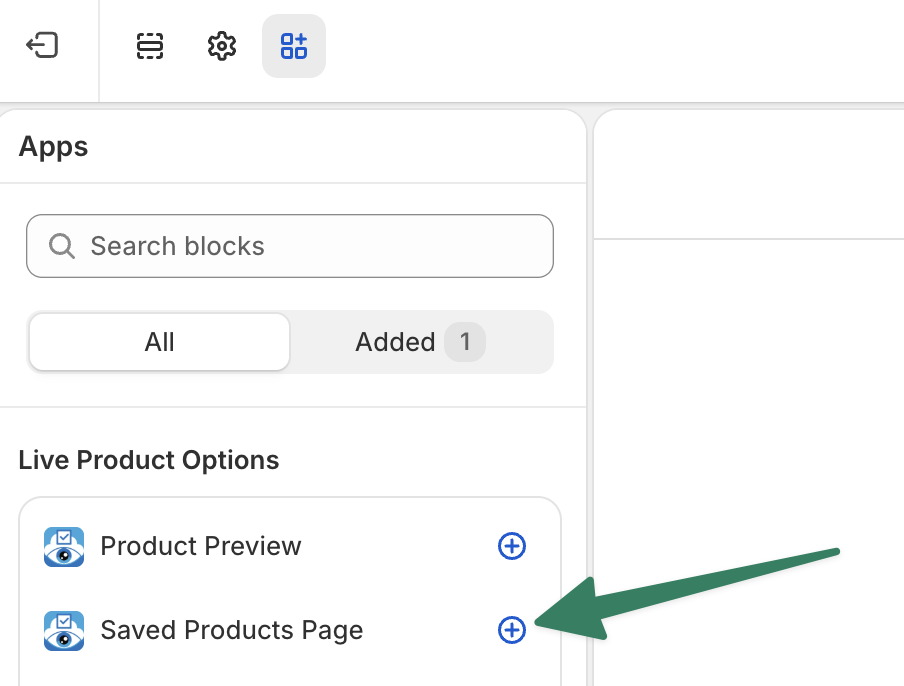
- Add to the "Accounts" page
- Save the checkout editor in the top right
-
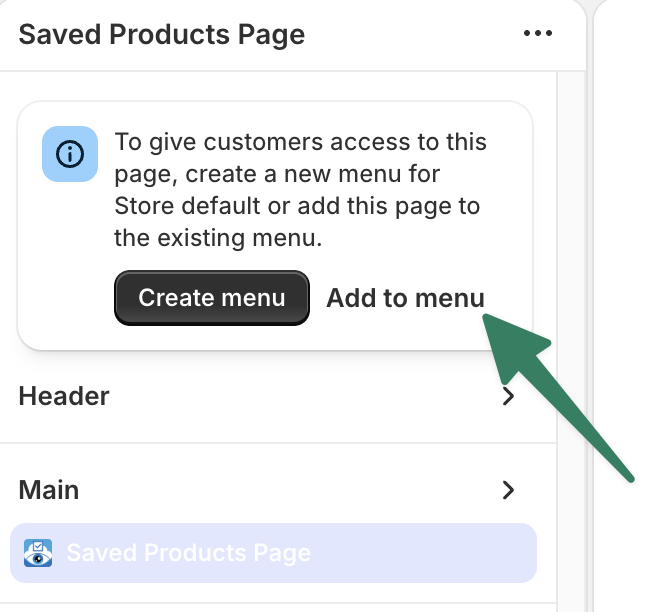
Next in the Banner, select "Add to menu." This will add the page link to your standard account menu for logged-in customers:
-
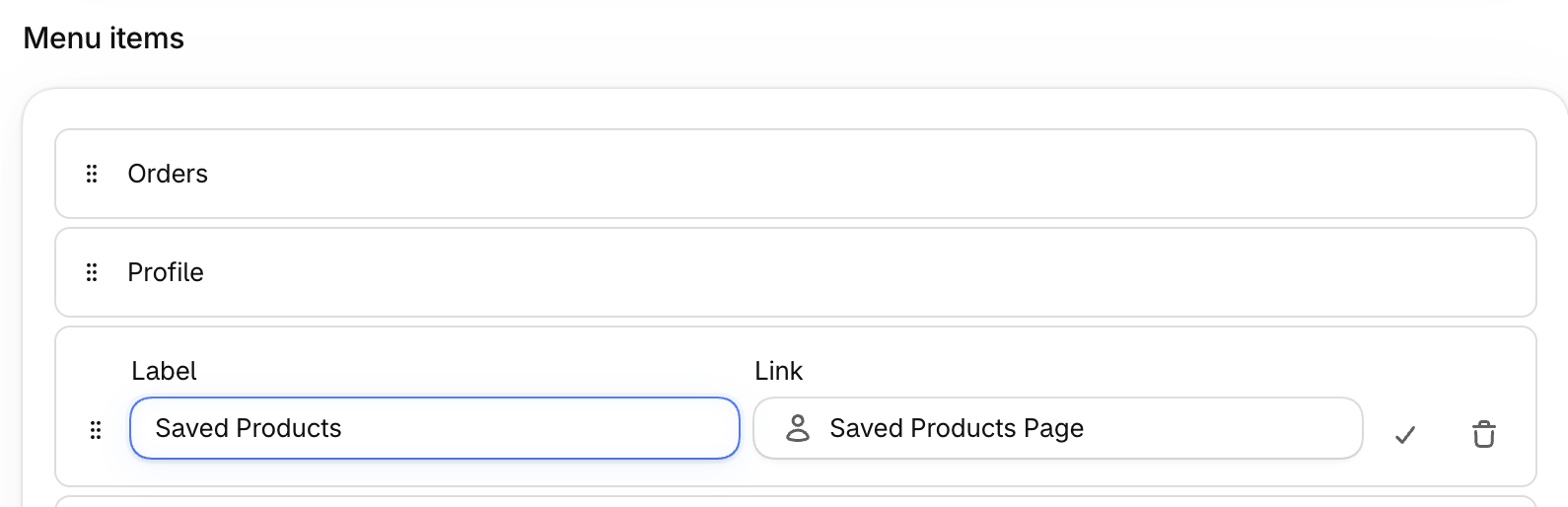
Enter any name for the menu item. The text is translatable via the Shopify Translate & Adapt app:
Admin Saved Products Page
On the App > Settings > Orders page, on the top right, there is a button "Saved products" to view all currently saved products from your customers

You can open the saved product on your store, view the linked customer account, and delete the saved product. The status also shows if the product has been ordered or is still pending.

Customer Email
With the standard setup, customers must be logged in before they can save a product. To simplify this process, the app can ask for the customer's email address and create a customer account automatically. Since the app does not have customer write access by default, additional permissions must first be approved.
Email capture
Email Capture allows the app to collect the customer's email address and create a customer account in the background. This makes it possible to save products without a separate login step and later send reminders with links to the customer's saved products.
Go to App > Settings > Checkout account settings and enable Email Capture.
The first time this setting is enabled, the app will request additional customer permissions. Reopen the app, approve the requested permissions, then return to the settings and enable Email Capture again.

IMPOROTANT: the Email caputre option has to be clicked twice, once to request the additional permission, and once after to actually enable it.
Email trigger

Each time a product or cart is saved, the app sends a Shopify Flow trigger called Product saved. This trigger can be used to send a reminder email with the Shopify Messaging app or another email platform such as Klaviyo.
When using Shopify Email, the customer must be marked as accepting marketing emails before a marketing message can be sent.
If local regulations require explicit consent, enable the "Ask for email consent" checkbox in the app. The save pop-up will then ask the customer to opt in before their email is used for marketing.
If the consent setting is disabled, marketing consent is granted automatically when the email is captured.
