
How can I organize product options configurations?
Once your store has more than 5 individual product options configurations, the app enables a seprate organization view.
Create folders
On the top right of the product options page, click on “Organize" to enable the organization view:

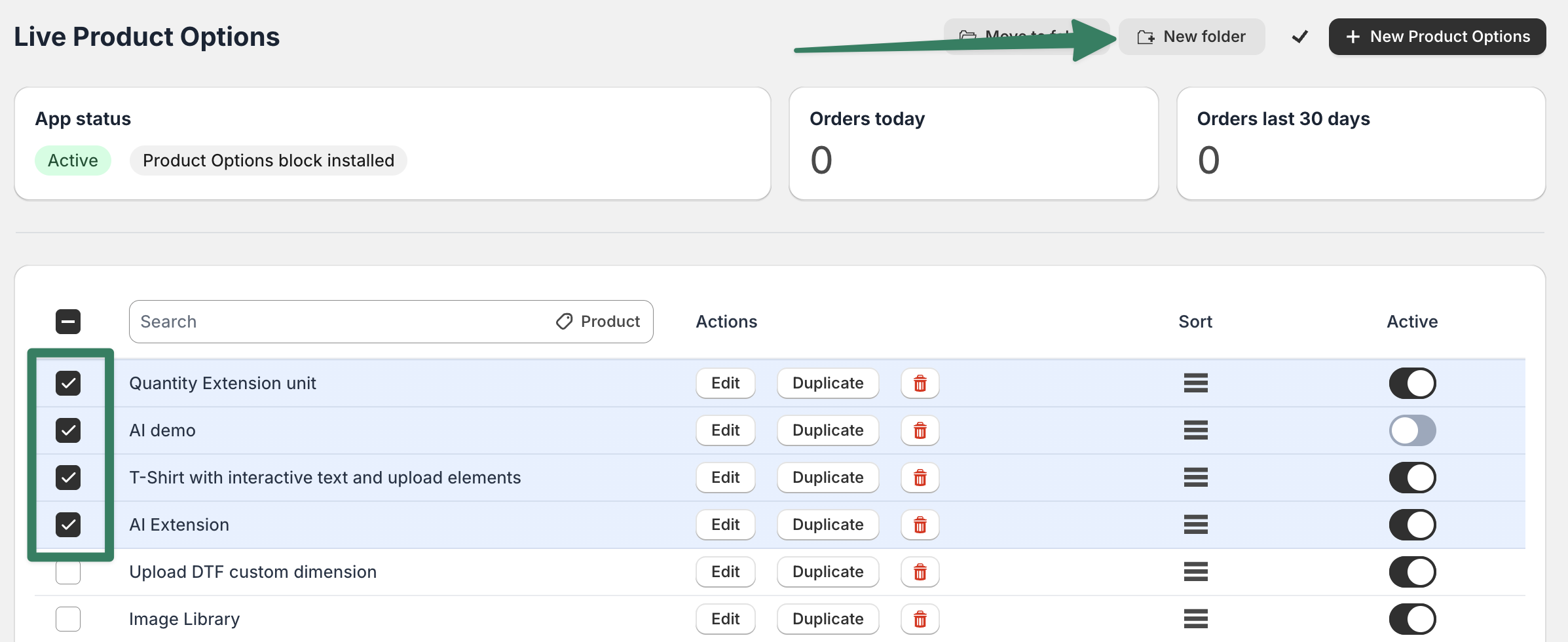
You can multi-select product options configurations, then click on "New folder" button to create a new folder and move the selected product options automatically into the new folder:
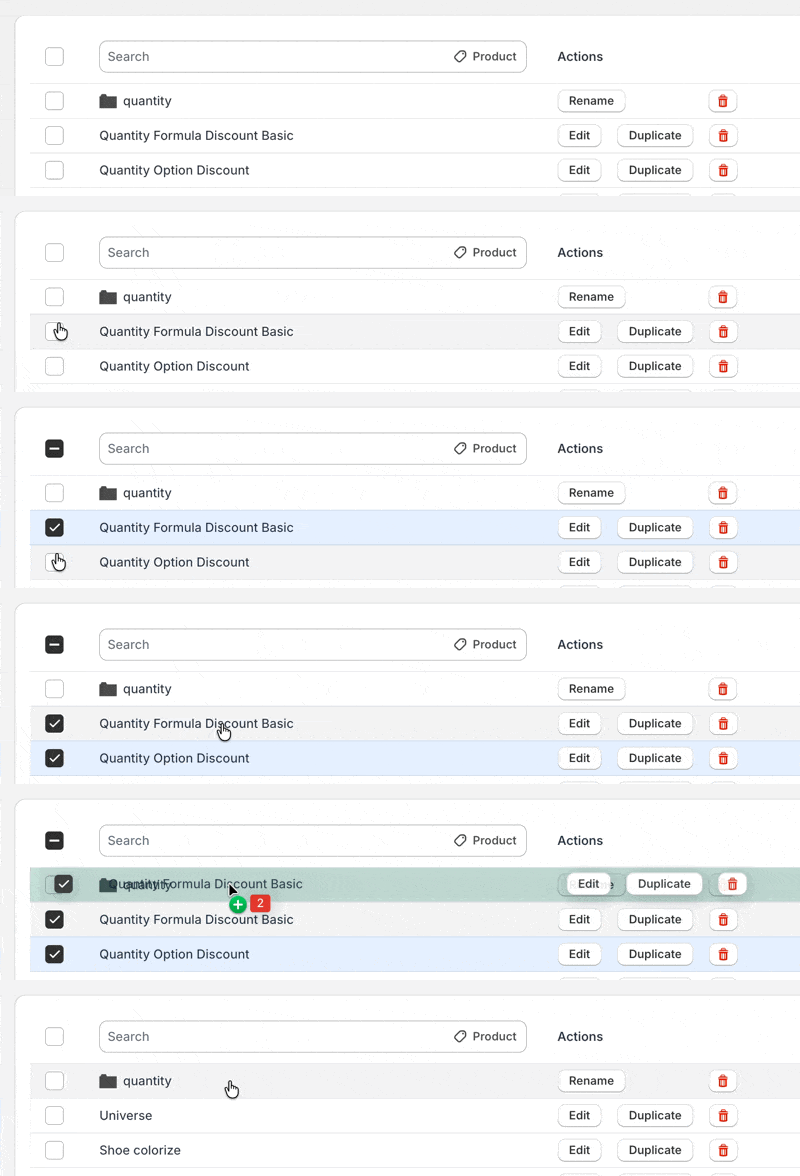
It's also possible to select and drag and drop product options into an existing folder:
Nesting folders is also supported.
Deleting folders
If you delete a folder, the configurations inside the folder will not be deleted, they will be moved to the parent folder.
Exiting the organization view
After you have organized your product options, to return to the normal view, click on the Checkmark button on the top right:

Sort order of folders
If you are attaching multiple product options configurations to the same product, creating folders can affect the sort order of the configurations. Folders always appear at the top of the list and thus are matched first. To maintain the original sort order, make sure to organize the configurations in the same order as they were in the top-level list.
Searching product configurations
If you have a large number of product options configurations, it can be difficult to find a configuration that is applied to a specific product.
The search bar has a custom search option to select a product from your store and filter to show the product options configurations that are applied to that product only:
