
Dynamic Options
The Dynamic Option type allows customers to add new options when designing the product on the product page. By allowing customers to add/remove options, you can build a more flexible and interactive product customization experience.
Live Demo can be found here: Live Product Options Interactive T-Shirt

Key Benefits
- Eliminates the need to predefine a specific number of options
- Configure an option once and allow customers to add as many options as they need
- Full control over the created options
Common Use Cases
-
Free form design products
Products such as t-shirts, hoodies, mugs, phone cases, or posters, where customers can add custom text, images, colors, or design elements without predefined limits.
-
Products with specific design areas
Products that have multiple customizable zones (for example, front, back, sleeve, or handle), where customers can dynamically add options or content to each area based on their design requirements.
Config
Create a new option and select the Dynamic Options type:

The option will automatically setup two child options, text and upload. You can add additional options as needed:

Options Template
The important thing to note is that each child option of the Dynamic Options is used a template for the new options that the customer can add. All the new options will inherit the settings from the child option.
Dynamic Options settings
Each child option has a minimum and maximum setting to control how many options the customer can add or remove.

Multi-select options
Option types like Image swatches have specific settings to enable multi selection, however inside of Dynamic Options, these options are always multi select by default:

Two values are displayed inside the Dynamic Options, selecting a value will add it below the selections and each option value can be selected multiple times:

Live Preview
Using the Live preview in combination with the Dynamic Options is the most common use case for allowing customers to design their own products.
The option has a button "Setup Live Preview" that automatically creates a live preview layer for each of the child options:

Note: it is possible to use the button more than once, the app only creates the layers that do not already exist. If you want the app to re-create a layer, you can delete the layer and click the button again.
Layers
The app automatically selects the matching layer type for each option. The layer settings are setup to allow customers to interactively move and resize the layers on the preview:

Layer Area
In most cases you want to limit the area where the customer can move around the elements on the preview, for this select the Advanced tab and set the Area to "Box", you can move the blue box around on the preview to set your desired area:

Layer Template
In the same way as with the options, each layer that is connected to a child option of the Dynamic Options is used as a template for the new layers that are added by the customer.
For example, you can define the color and font of a text layer, each new text layer will inherit the settings from the template layer:

Color Options
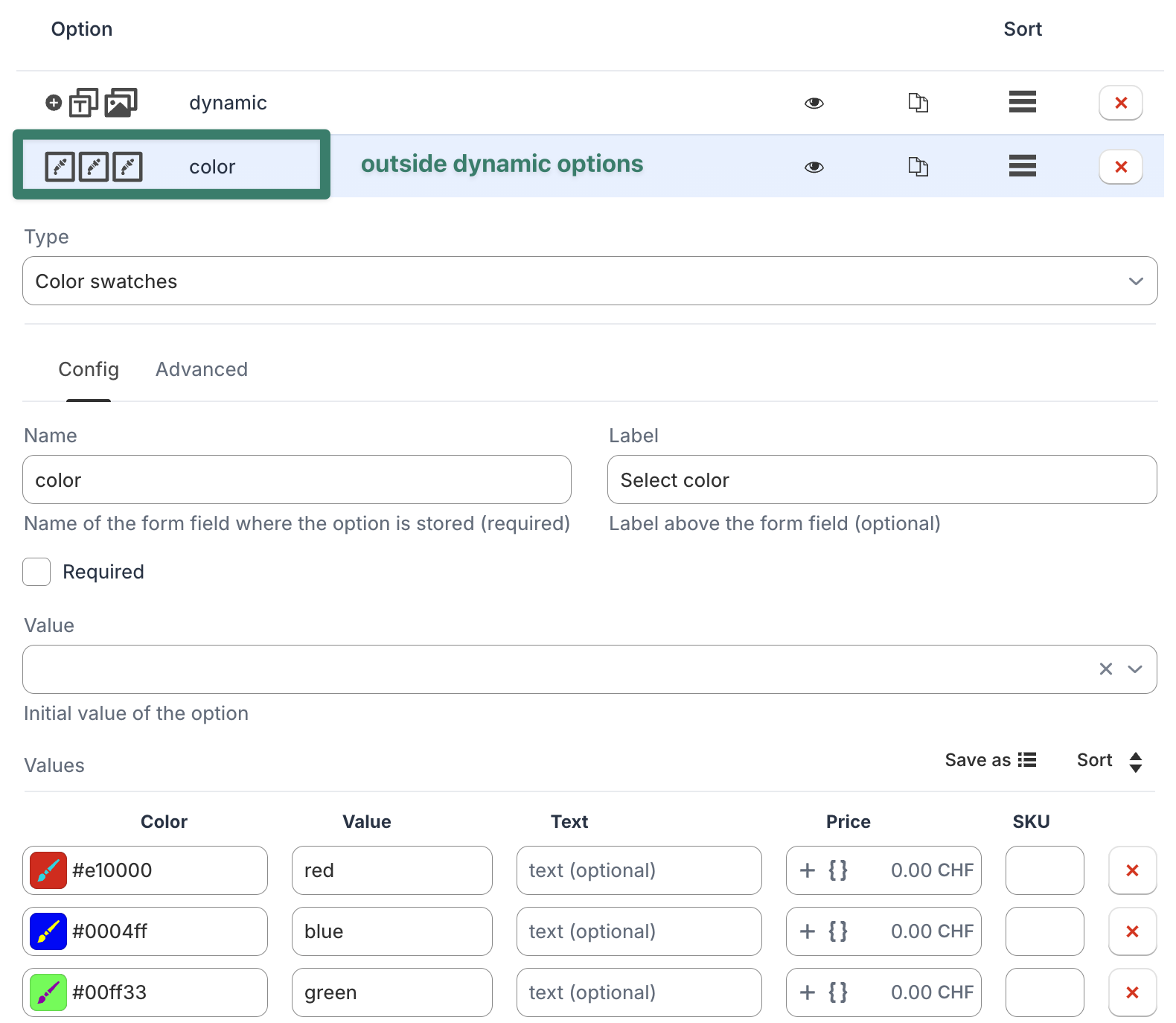
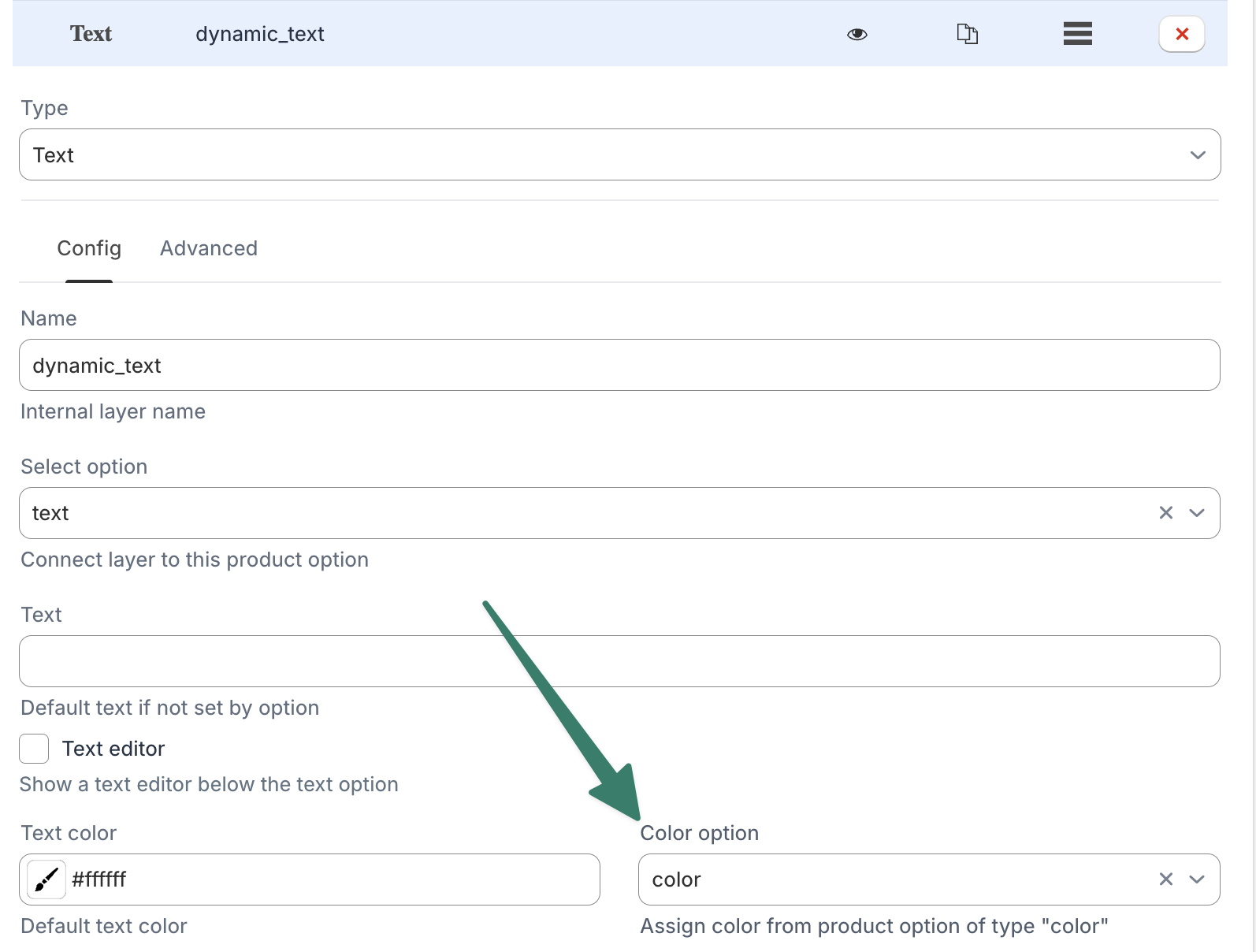
If you want to use a separate color option for each new layer in the Dynamic Option, you can create a single option of type "Color" or "Color Swatches" outside of the Dynamic option and on the live preview layer connect the color option to the layer.:
Connect on Live preview layer > Color option:
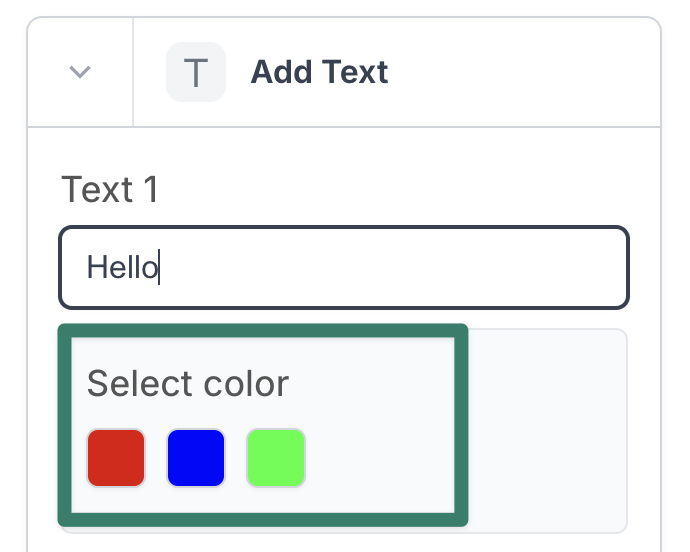
The Dynamic Option UI will automatically show the color picker for each new layer that is added:
Advanced Options
The following option types behave differently inside of Dynamic Options:
Library
The library option normally does not have any multi-select functionality, however inside of Dynamic Options, each selected item will be added as a new option, thus the library option is always multi select by default.
The recommended way to display a large number of images from the library is to enable the "Popup window" setting on the library option:

Upload-Lift
The advanced upload option type based on the Upload-Lift app already has it's own multi upload functionality, to work well with the Dynamic Options, the setting on the File settings section has to be set to “Multiple files” in the Upload-Lift App upload field configuration:
