
How can I change to color of an image?
If you want to allow your customers to freely select a color and update the preview image, follow the steps below.
Example

Setup
Color option
Create an option of type Color and enter a name:

You can also use color swatches with pre-configured color codes:

Overlay Layer
In the live preview config, create a new layer of type Overlay, upload the image part that should be colorized and connect it to the color option:
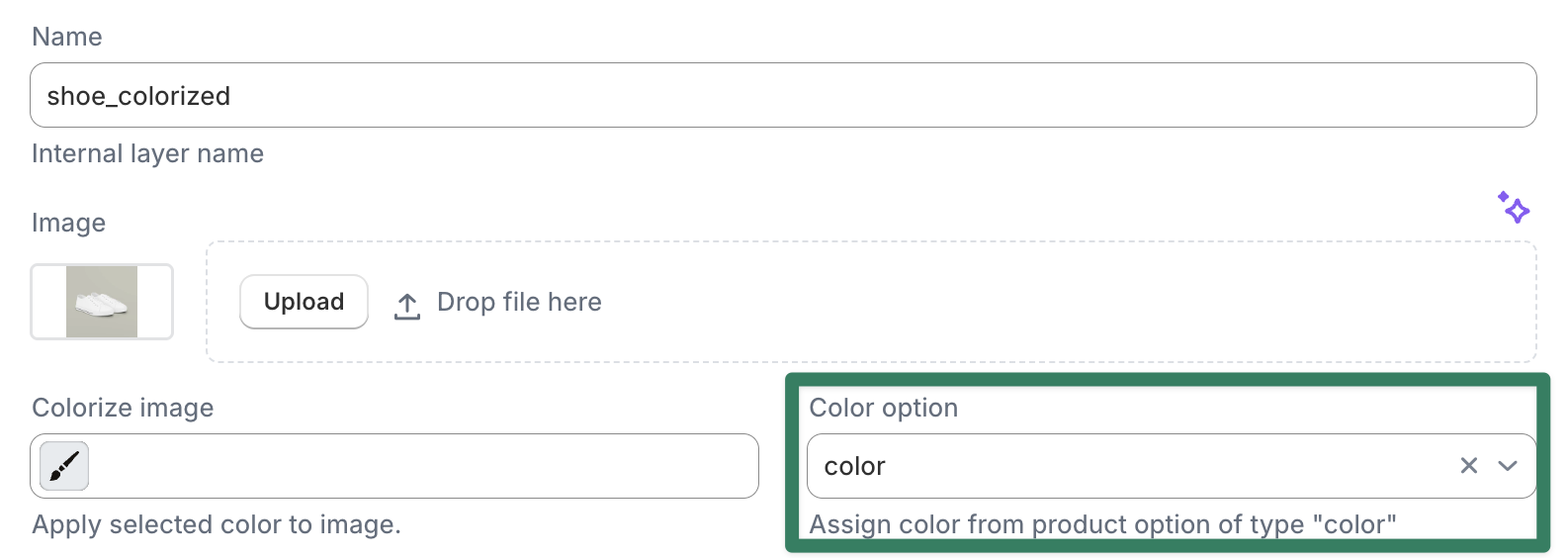
Colorize works on an Overlay layer that has a color attached. The color comes from one of:
- a fixed color set on the layer
- a Color option linked to the layer, so the customer's selection drives the color.
If no color or color option is set, colorizing has no visible effect.
Colorize image preparation
Preparing a grayscale or mask image can be time-consuming. The app has a new Colorize button that streamlines the setup.
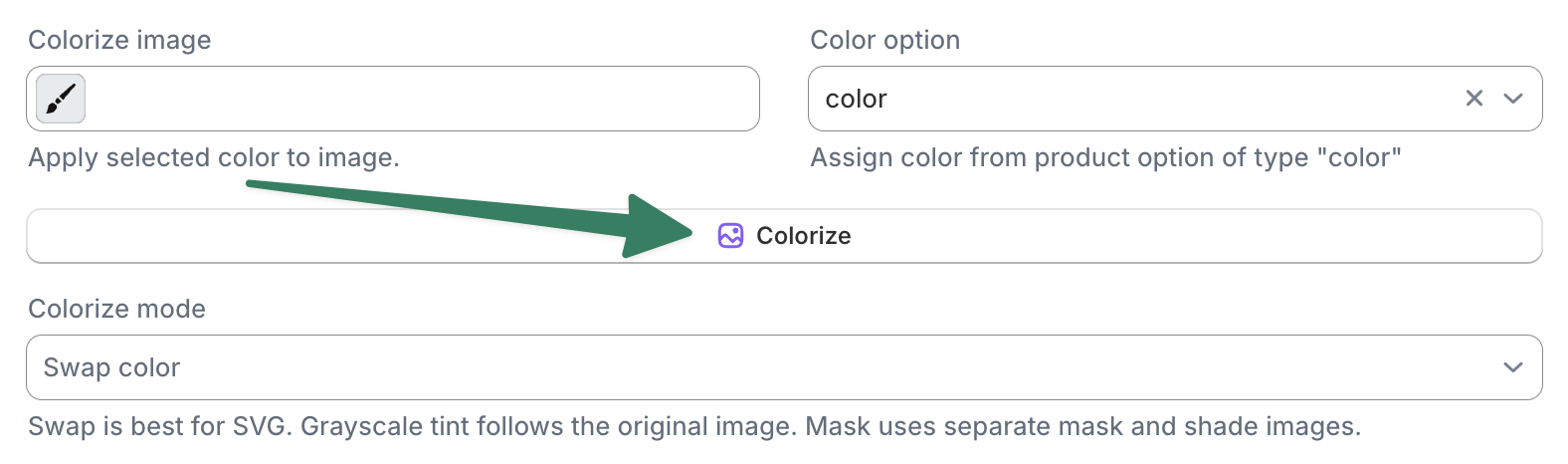
Note: Generating a colorize layer uses AI credits. (100 credits are included for free.)
Colorize modes
Image colorization supports the following modes:
1. Swap color
Replaces the color directly with the selected color. For a normal image it recolors the white parts; for an SVG it recolors the fill of every shape.
- Image: create the overlay so only the area you want colored is white, with everything else transparent.
-
SVG: For SVG colorization, the app replaces the fill color of all the elements inside the SVG. You can use any kind of shape and color:

Note: this image is just an illustration of an SVG, a real SVG version can be found here.

Best for logos, icons, SVGs, and simple white-on-transparent artwork.
2. Grayscale tint
The selected color shows through the image's light and shadow, so highlights and shading are preserved. This lets you colorize a full photographic or textured image, not just flat white areas.
Best for printed photos, textured fabric, and any artwork where you want to keep the original shading.
You can fine-tune the look with a Shading style preset:
- Balanced (default)
- Bright
- Deep
3. Mask and shade
The highest-fidelity option. It keeps your original image pixels and adds realistic shading on top of the selected color so the recolor looks photorealistic.
Best for clean product shots. This mode is advanced, so the easiest way to set it up is to let the app prepare it for you with the Colorize button rather than configuring the images by hand.
AI assistant
You can also ask the AI assistant in chat, for example: "Make this logo colorized by the selected color option." The assistant will make sure a color or color option is set, remove the background if needed, and colorize the overlay for you.
Template
There is a full example template available in the app:
